
Scan your cards. Know where they belong.
Trovery helps you scan, review and organize your physical Magic: The Gathering collection — from the cards you just opened to the binder you put them in.
An unofficial collection tracker for Android. Free to use, with no Trovery account required.
Closed beta — Play link coming soon
Trovery is in closed beta. Access is limited to eligible testers.
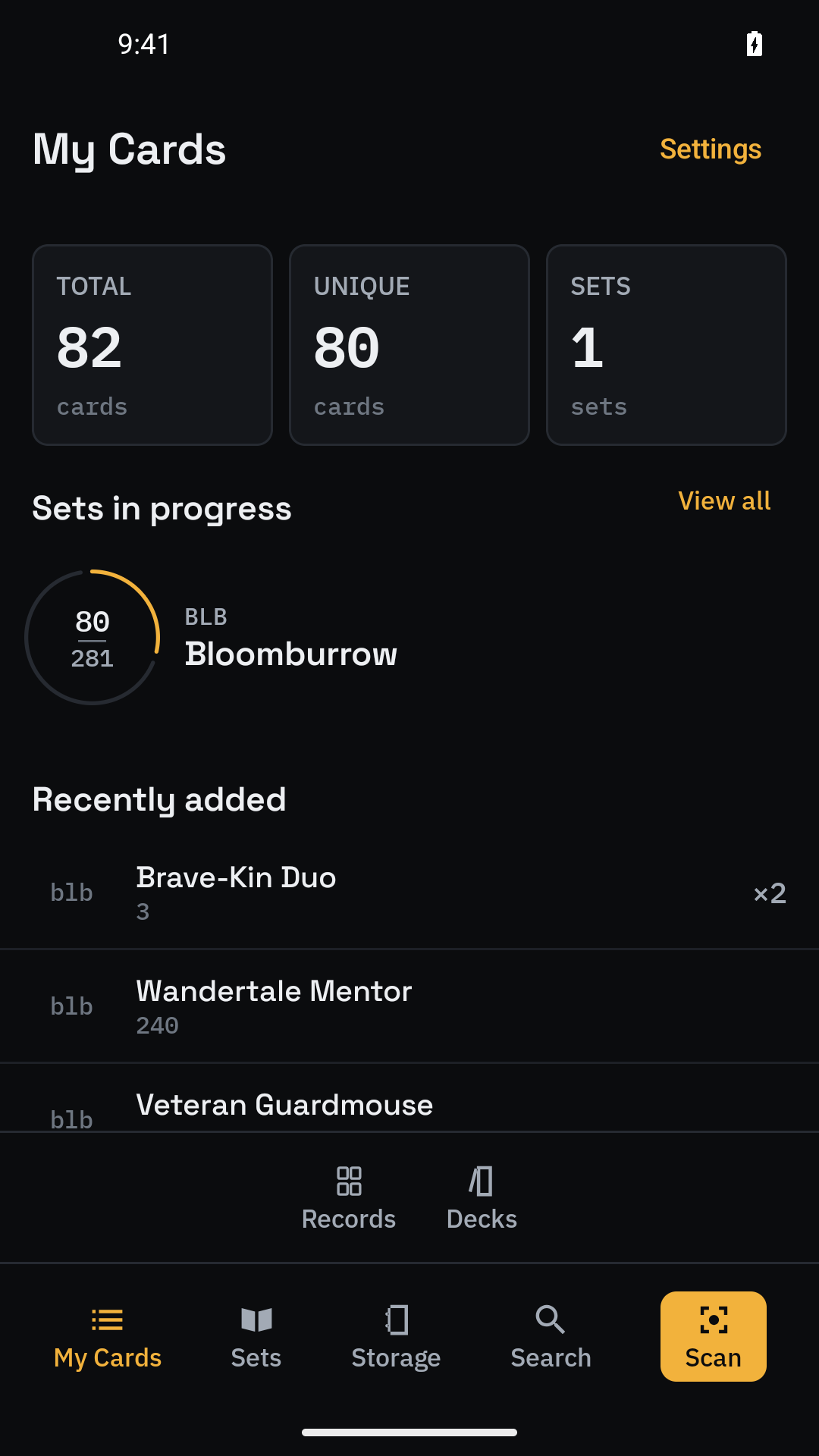
From a card in your hand to a place in your collection
Scan, check, save
Point your camera at a card and add it to a scan session. Review the matches, correct uncertain printings, and save when you are ready. You can also search for cards and add them manually.
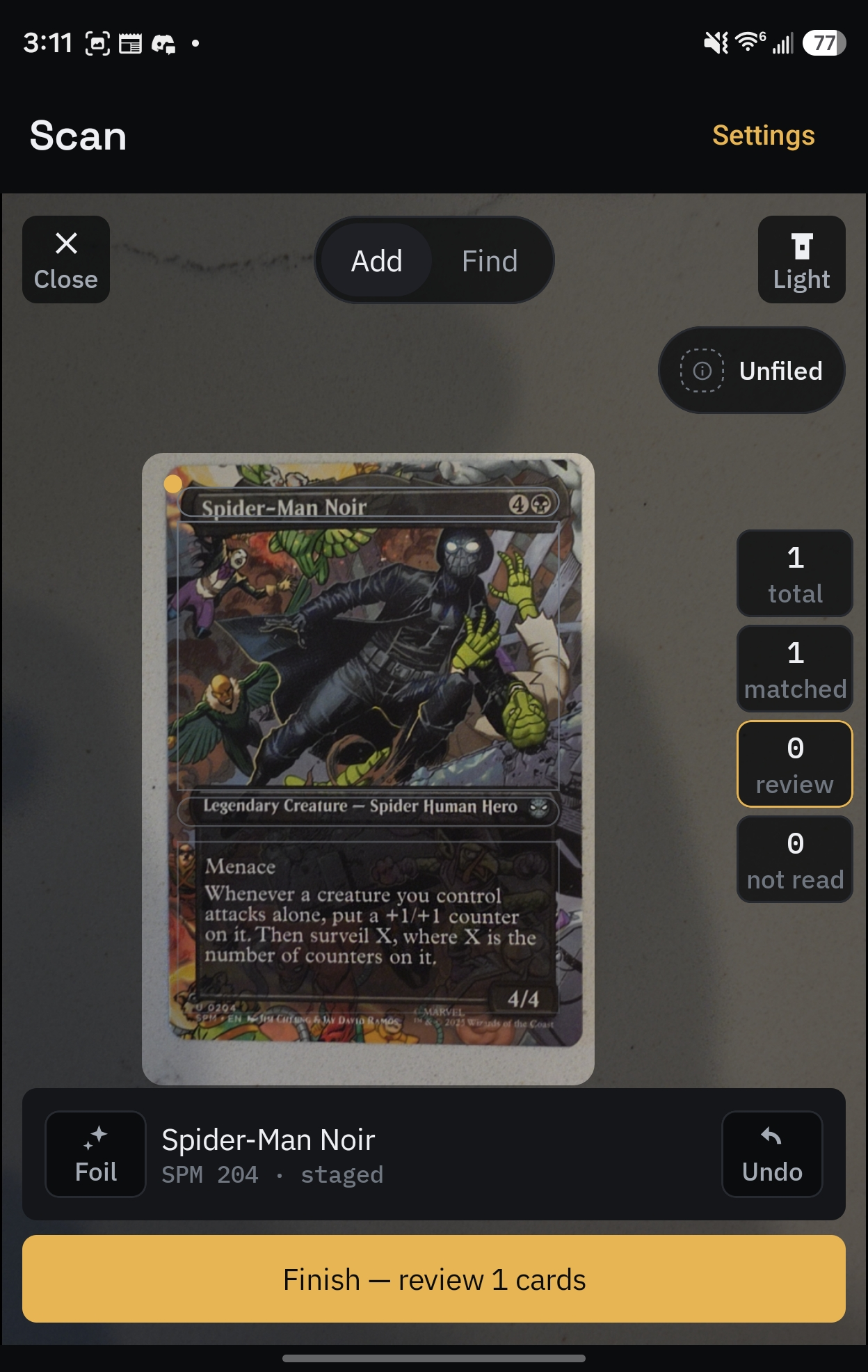
Find the right binder or box
Give your cards a home in Storage. Open a card to see where your copies are, or use Scan's Find mode to look up a card you already own.
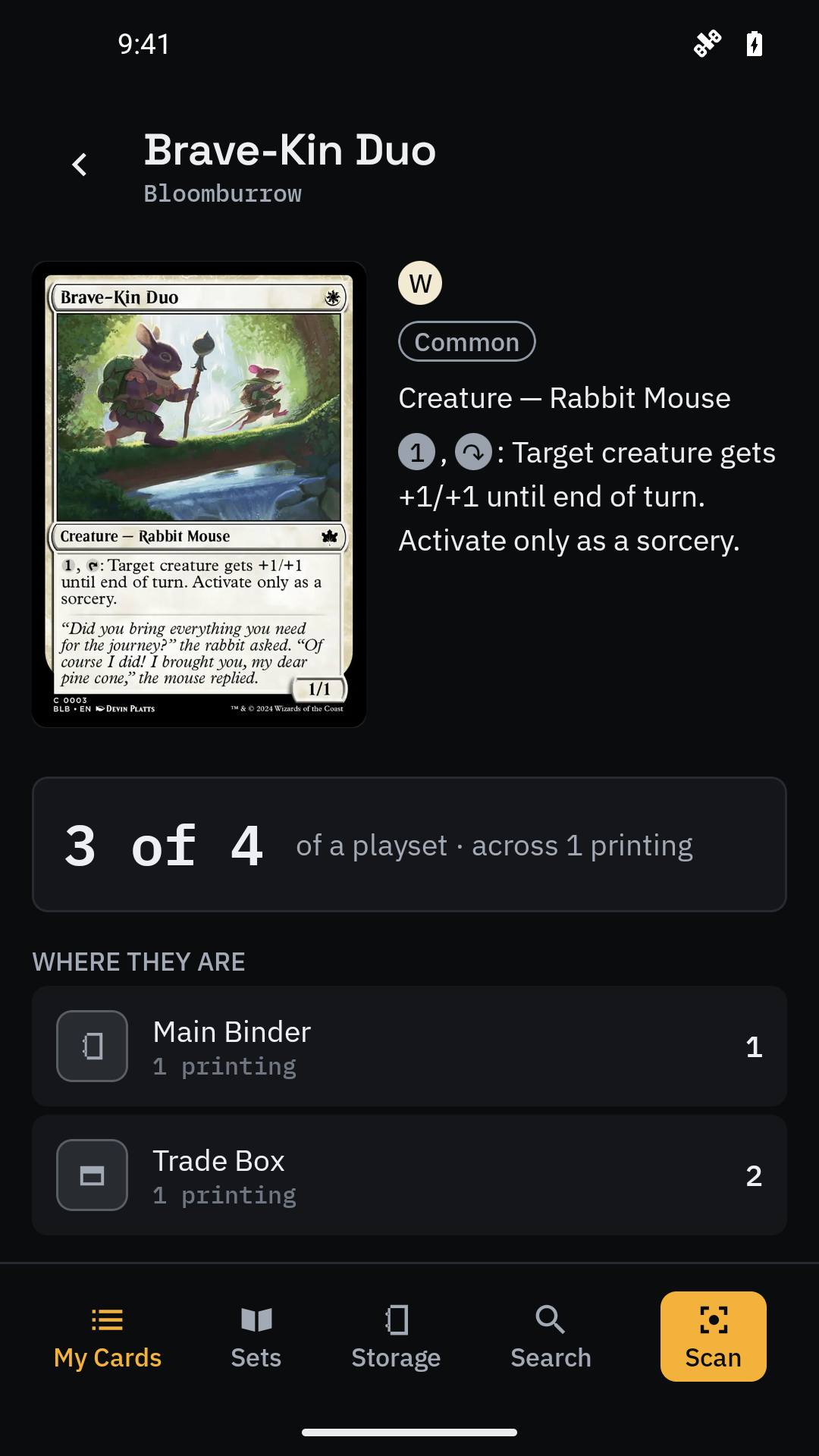
Your collection, under your control
Your collection lives on your device. You do not need a Trovery account to use it.
Scanning and collection management work offline once the required catalogue and scanner data are installed. Card images need to be downloaded first. Settings lets you control image downloads and download owned-card images for offline browsing. The app manages cache space automatically, so check that the images you need are available before going offline.
Export a collection backup to a destination you choose. Keep a copy outside the app so you can restore your collection after changing phones. Restoring replaces the current collection; it does not merge two collections.
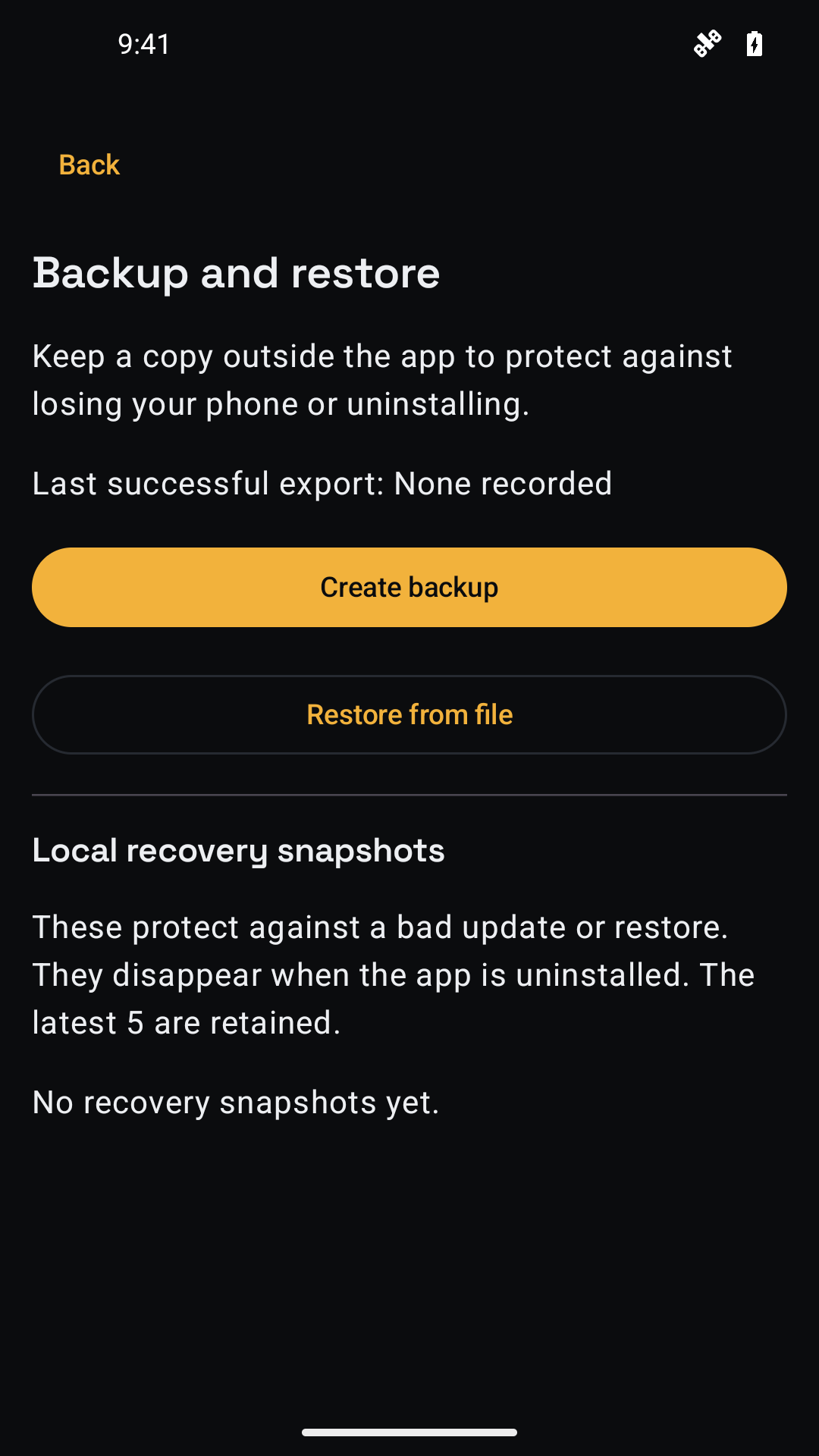
See what you have. Find what is missing.
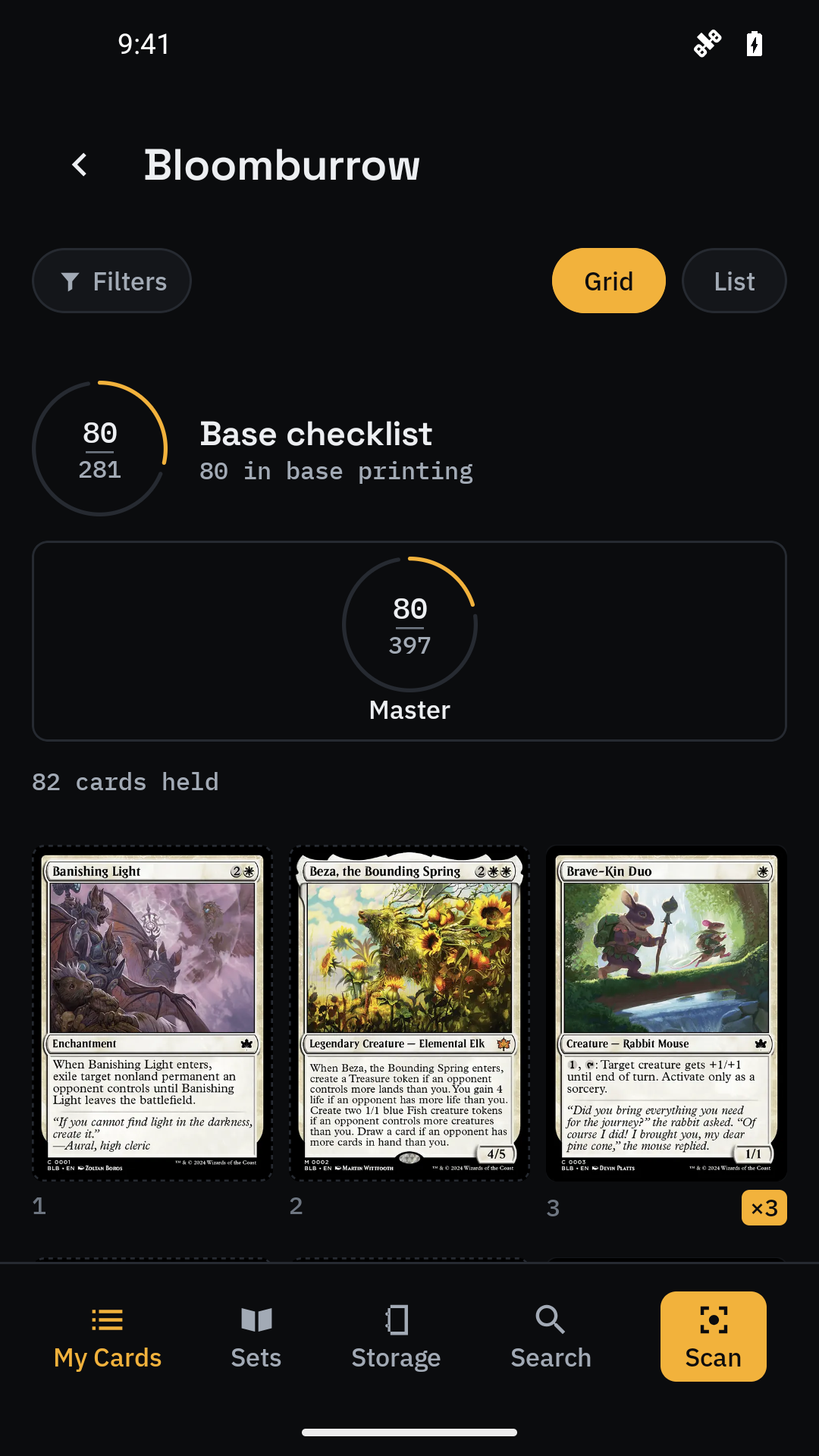
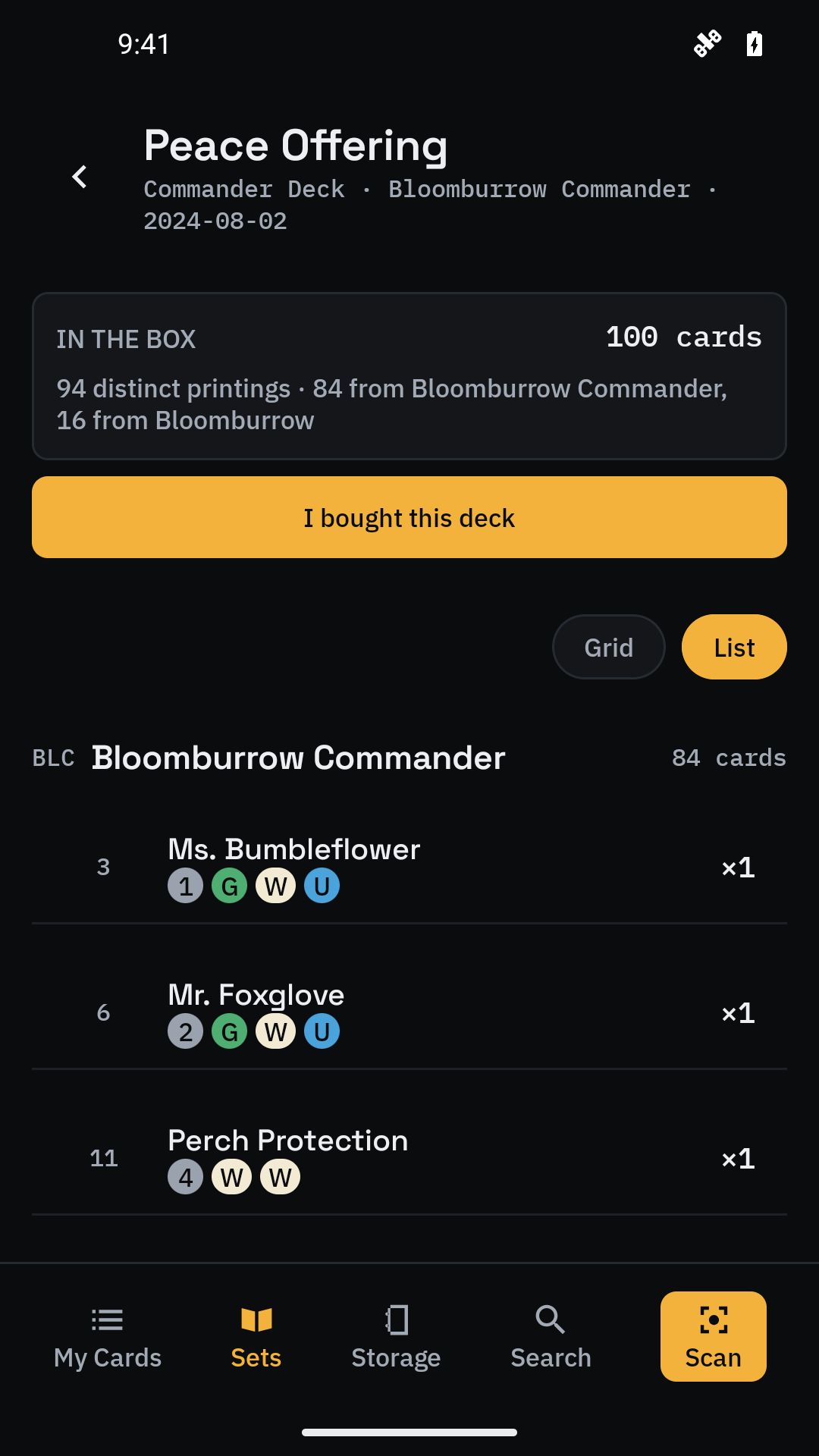
Browse sets and track your progress. Check missing cards, explore alternate printings, and keep duplicate copies distinct. Explore preconstructed products and organize decks using cards you own.
A little help getting started
How do I add my first card?
Open Scan, choose Add, and select a Storage option for the cards before you start scanning. Finish the session, check the matches, and choose Complete to save.
What if a scan picks the wrong printing?
Use the light button to improve the lighting, avoid glare, and line up one card with the outline. Review the offered printing and collector number, and correct the match in review before saving. A match is not a guarantee of identification.
Do I have to allow camera access?
No. Camera permission enables scanning. You can browse, search and add cards manually without it. You can change the permission later in Android settings.
Why are some card images missing?
New images need network access and must follow your download settings. Check Images and downloads in Settings, your connection, and available storage. Downloaded images remain available offline until removed from the cache. Some source images may be unavailable even with a connection.
How do I keep track of physical cards?
Create a binder, box or deck box in Storage, then assign cards to it. Unfiled cards are owned cards without a location yet. Card detail shows where your copies are stored.
What does set completion count?
The base checklist and alternate printings are different views of progress. More copies of one card do not fill more checklist slots. Use set filters to inspect missing cards and the treatments you collect.
How do I protect or move my collection?
Export a backup from the backup/restore screen in Settings and keep it outside the app. The export contains collection records, locations and decks; it excludes card images, scan captures and device preferences.
Restore shows a preview and replaces the current collection after confirmation. Export the current collection first if you want to keep it. Local recovery snapshots disappear when app data is cleared or the app is uninstalled.
Why is a new set or a price missing?
Check the Sets screen for known upcoming sets and their release dates. You can also check the installed data version in About and look for app updates. Prices, where available, are dated estimates from the configured source. They may be missing or stale and are not guaranteed sale prices. Remote price availability is not a promised beta feature.
How do I report a problem?
Email support@pylonicstudios.com. Include your app version, Android version, what you were doing and what happened. Please do not send scan captures, credentials or a collection backup in your initial message.
Made by Pylonic Studios
Trovery is made by Pylonic Studios LLC, known as Pylonic Studios, to help collectors keep track of their cards and where they belong.
Need help or have beta feedback? Email Trovery support